Bluetooth Tag
How to Pair Bluetooth Tag with CHESTER
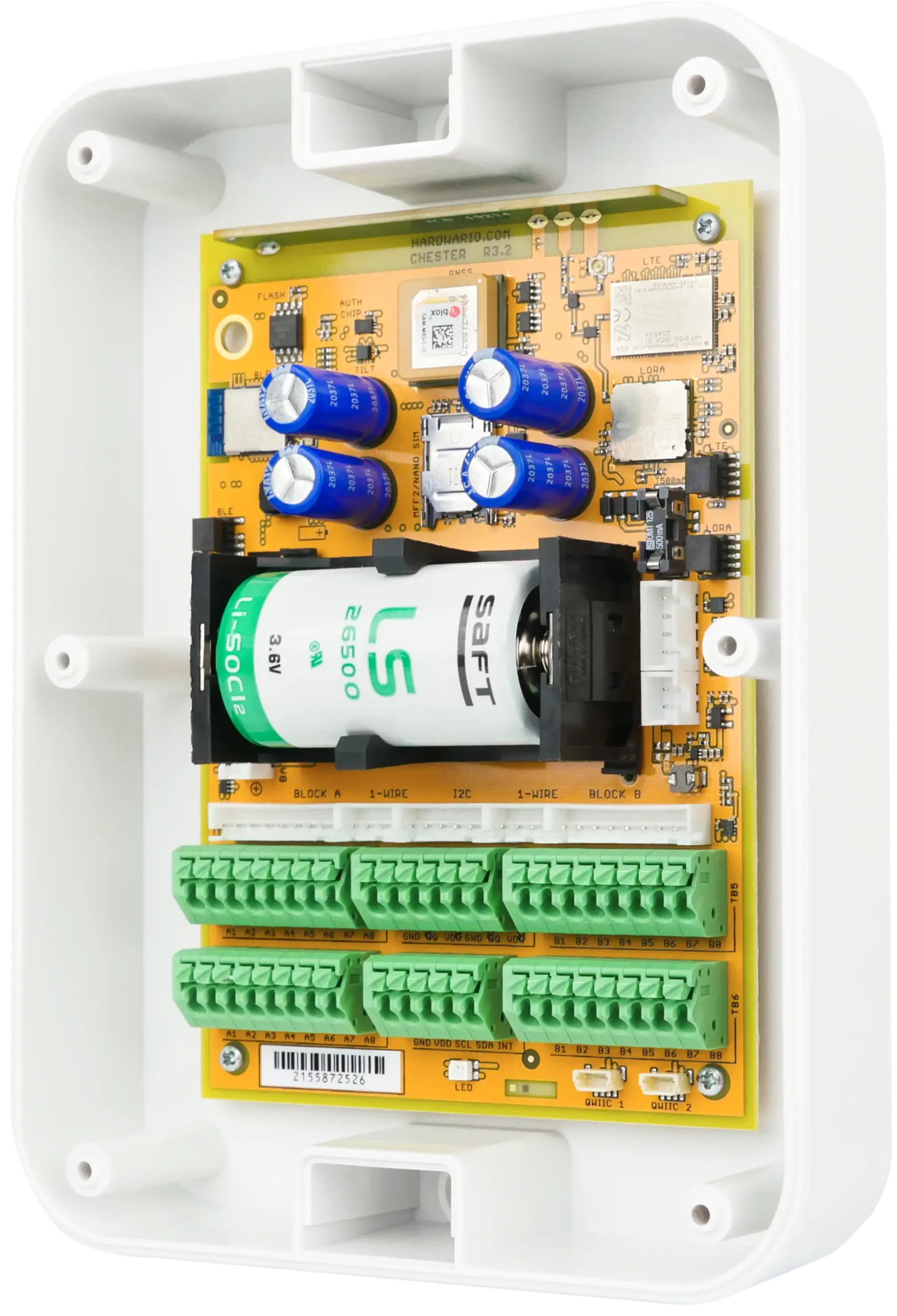
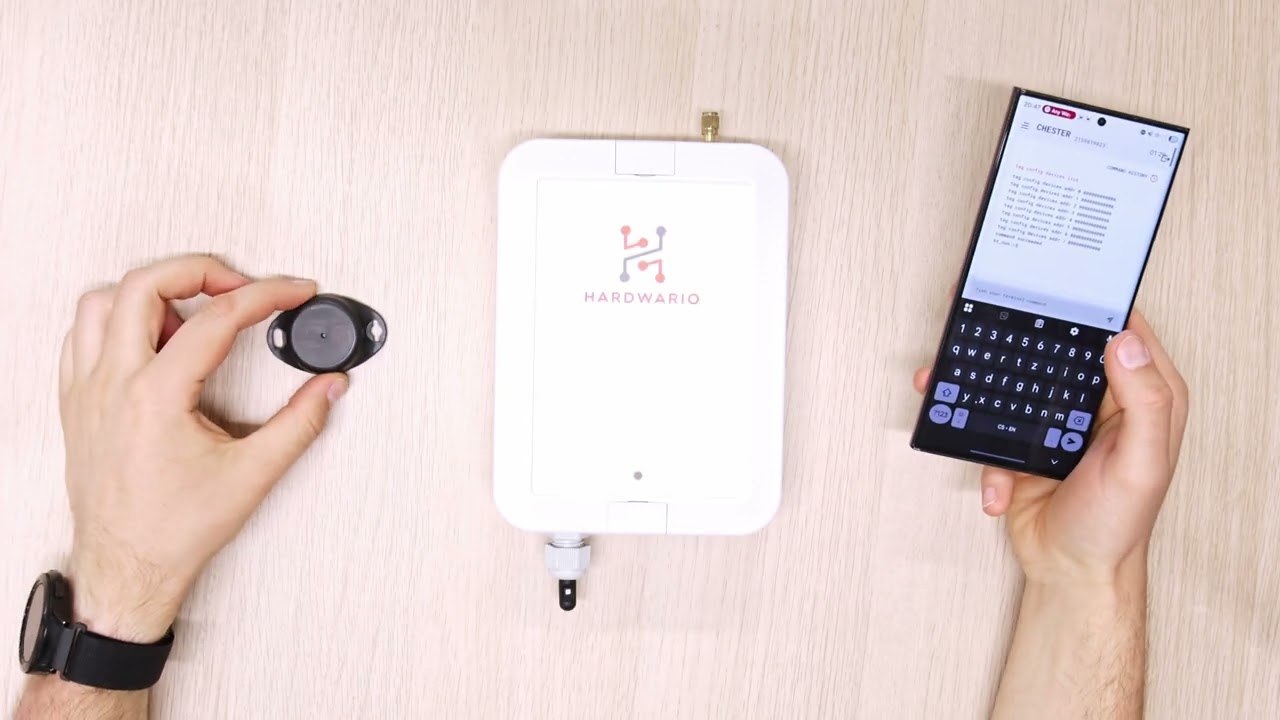
Pair up to 8 Bluetooth Tags with your CHESTER platform using the HARDWARIO Manager app terminal.
Steps
- 1. Take CHESTER and connect using the HARDWARIO Manager app.
- 2. If this is your first time, watch the video in the card where the whole procedure is shown.
- 3. Once connected, go to Terminal.
- 4. Type the command config show to check that your settings are correct.
- 5. In the output, find the tag config enabled.
- 6. If it is set to true, you can skip the following steps.
- 7. If it is set to false, type tag config enabled true, then config save, and then device restart.
- 8. CHESTER will restart and disconnect you, so reconnect again.
- 9. Scan the QR code, click on the device, and go to Console.
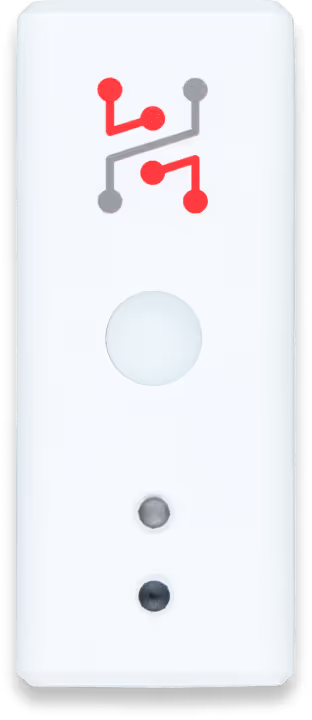
- 10. You can pair up to 8 tags with CHESTER.
- 11. To see the paired tags, type tag list.
- 12. You will see the list of enrolled tags, which will be empty at first.
- 13. Take the tag you want to pair and place it next to CHESTER.
- 14. In the console, type tag enroll. CHESTER will start auto-discovery for 10 seconds.
- 15. If it finds the tag, it will display its MAC address, make sure it matches (you can find it on the tag).
- 16. If pairing was successful, you can skip the next steps.
- 17. If CHESTER does not find the tag, try tag enroll twice.
- 18. If pairing still does not work, you must manually save the MAC address.
- 19. Do this using the command tag config devices add MAC_address, which you can find on the tag or in the QR code.
- 20. After entering it, the tag will automatically be added to the first free slot.
- 21. You can add more tags this way (up to 8).
- 22. If you enter a wrong address, you can remove it using tag config devices remove MAC_address.
- 23. Save the final configuration using config save.
- 24. To check, reconnect to CHESTER and in the console type tag list.
- 25. It should show the list of your paired tags.
- 26. To test reading, type tag read. CHESTER will read the current values from the tags.
- 27. That's it. Now you can install the tags where you need them.
Ready for the Next Step?
Our team is here to help you set up and configure your HARDWARIO IoT solution.