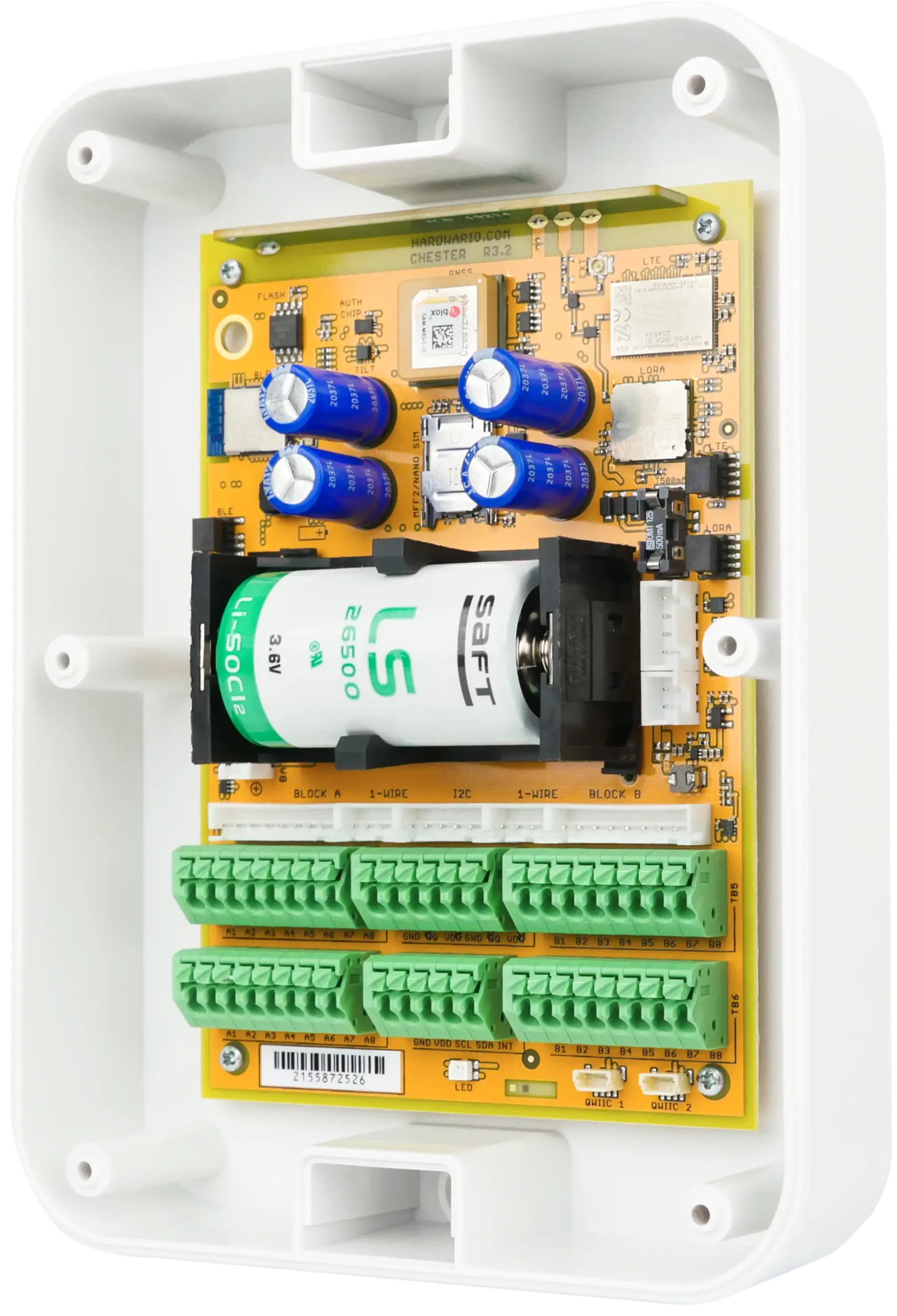
CHESTER
How to Update CHESTER with Phone
Learn how to update your CHESTER firmware over Bluetooth using the HARDWARIO Manager app on your phone.
Steps
- 1. Take your CHESTER and connect using the HARDWARIO Manager app.
- 2. If this is your first time, watch the video in the card where the full procedure is explained.
- 3. On the main screen, check the current name and firmware version.
- 4. To update, go to the menu and select the Update firmware section.
- 5. Click on SCAN QR CODE.
- 6. Open the scanner and scan the QR code from the firmware page.
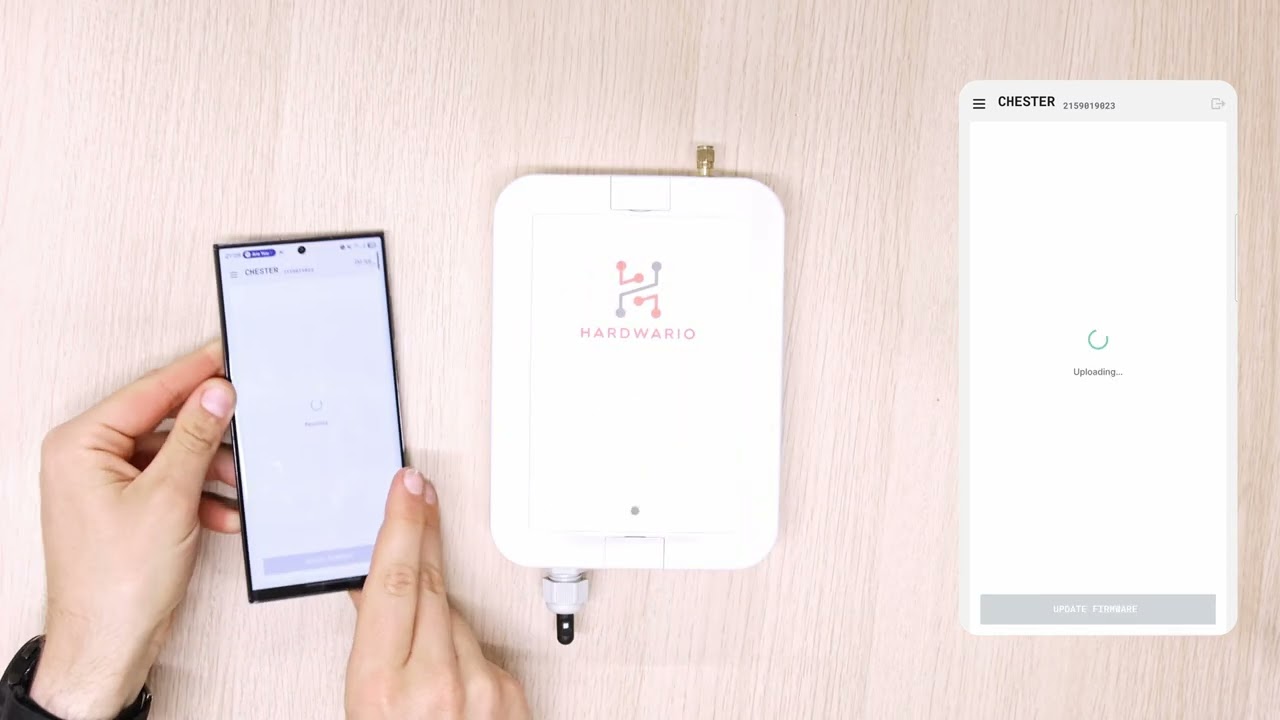
- 7. The firmware will download automatically. Just click on UPDATE FIRMWARE.
- 8. It will take about 2 minutes. First, the firmware is uploaded to CHESTER.
- 9. Then a reset will be triggered, during which the status LED will blink in multiple colors.
- 10. After the reset, CHESTER will reconnect to your phone and confirm that the update has been completed.
- 11. At this point, a message Firmware updated successfully will appear and CHESTER will disconnect. Click OK.
- 12. If you want to verify that the update was successful, reconnect to CHESTER.
- 13. On the main screen, check that the name and firmware version have changed compared to before the update.
Ready for the Next Step?
Our team is here to help you set up and configure your HARDWARIO IoT solution.