Bluetooth Tag
How to Set Up Bluetooth Tag
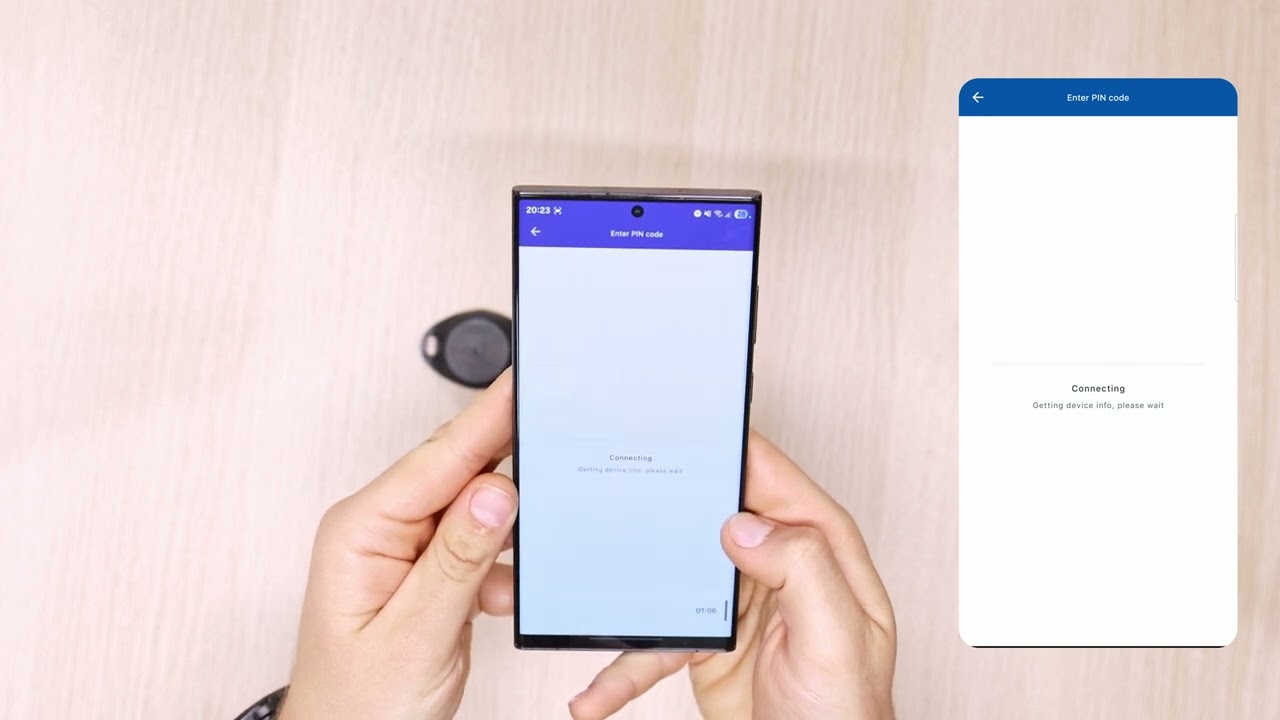
Configure your Teltonika Bluetooth Tag using the EYE App, from waking it up to setting power signal and advertising interval.
Steps
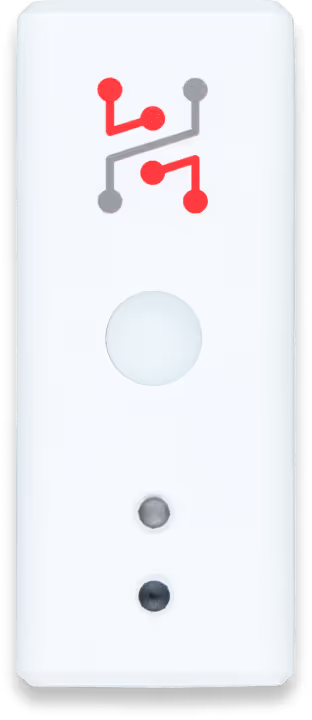
- 1. Take your Teltonika Tag, place a magnet on the front side, and wait until the green LED blinks. This wakes it up from sleep mode.
- 2. Take your phone and download or open the EYE App.
- 3. In the app, tap the magnifying glass icon, then tap the QR code icon, and scan the QR code on the BLE Tag.
- 4. Then tap Search.
- 5. Now, only your scanned Tag should appear.
- 6. If not, pull down on the page to refresh.
- 7. Once you see your Tag, tap on it.
- 8. After a moment, a pairing window will pop up.
- 9. Enter the passkey, which is 123456 by default.
- 10. Now you are connected to the sensor.
- 11. If an update is available, tap Download and Install.
- 12. The sensor will automatically update to the latest FW version. This takes about 2–3 minutes.
- 13. After the update, open the Configure section.
- 14. Set the Power signal to 4 dBm for better range.
- 15. Then set Advertising Interval to the maximum value, which is 10 s.
- 16. Finally, disable the Movement and Magnetic Field sensors.
- 17. Tap Save and then Save again. The Tag is now configured.
- 18. You can now disconnect and set up another Tag.
Ready for the Next Step?
Our team is here to help you set up and configure your HARDWARIO IoT solution.