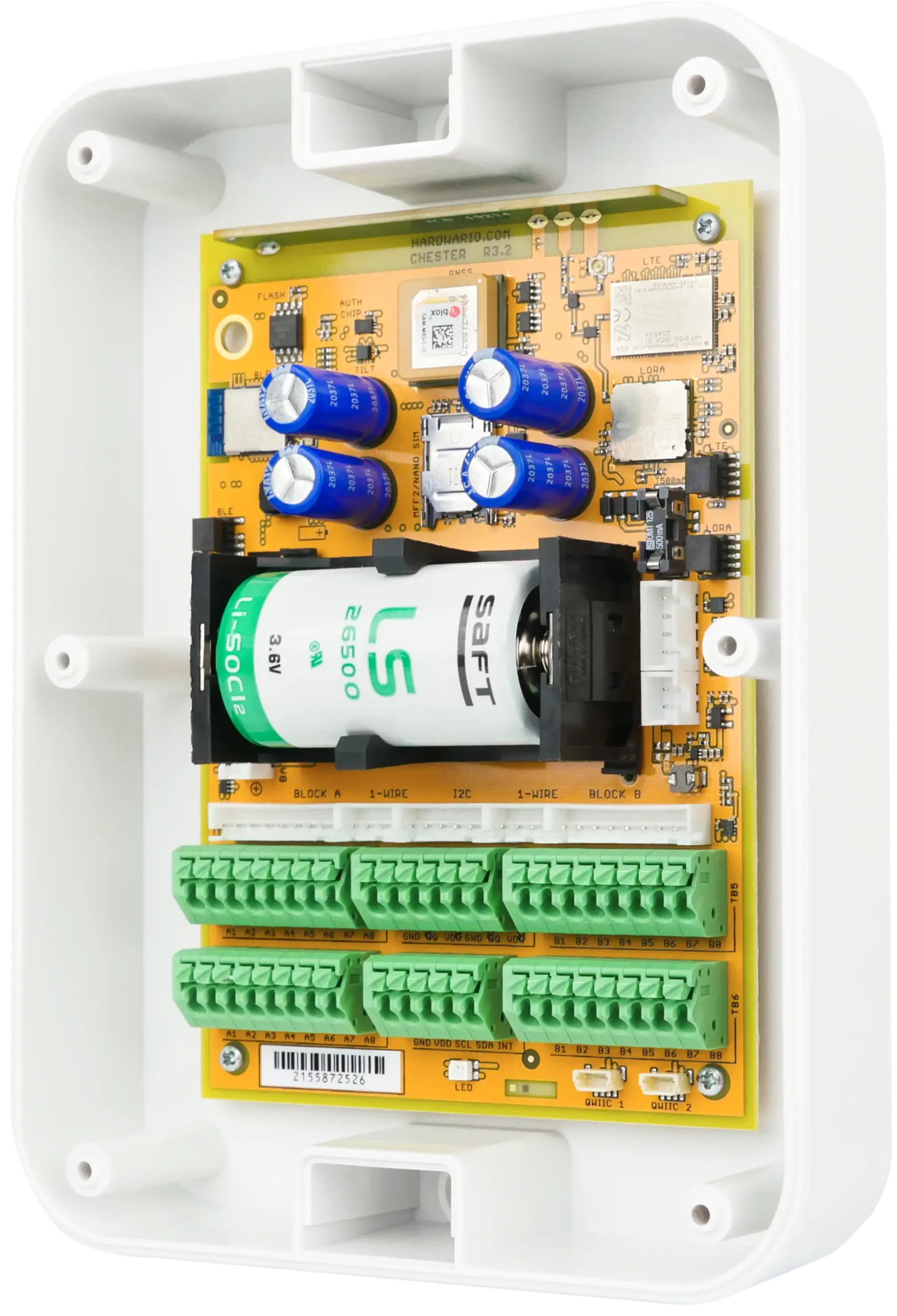
CHESTER
How to Connect CHESTER to Your Phone
Step-by-step guide to connecting your CHESTER IoT platform to your phone via Bluetooth using the HARDWARIO Manager app.
Steps
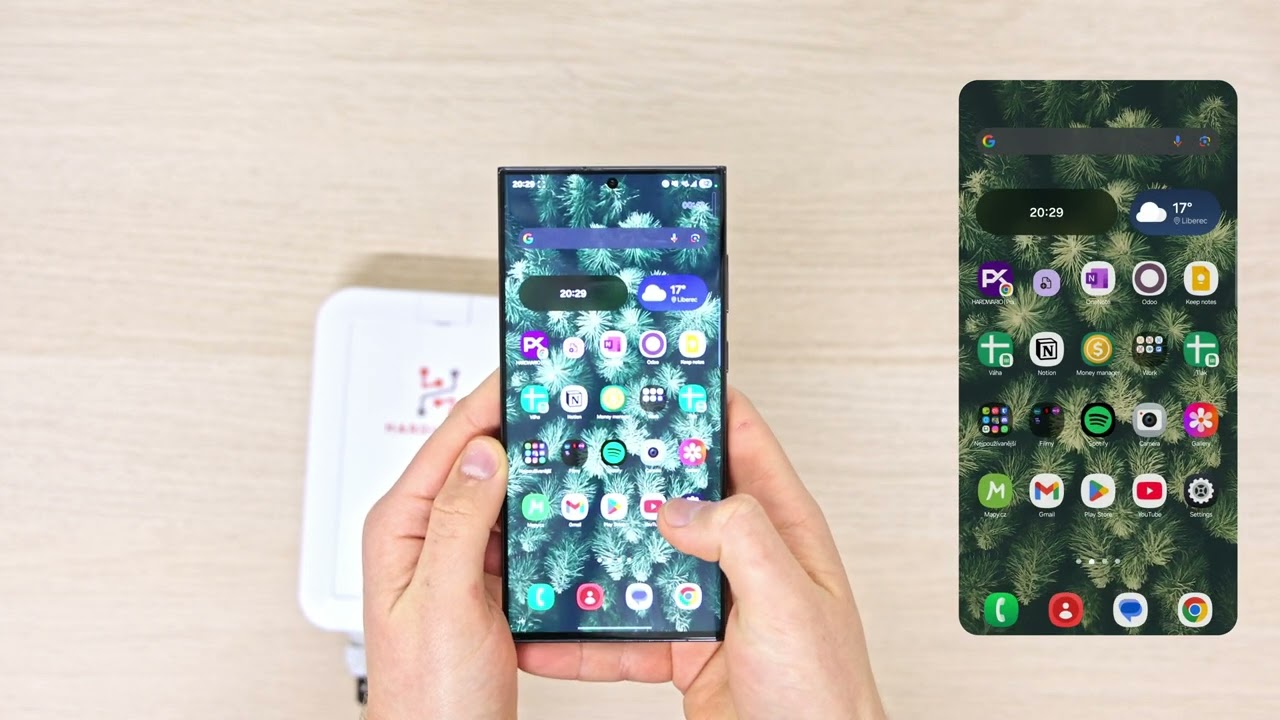
- 1. Take your phone and open the Camera app.
- 2. Now scan the QR code on the back of CHESTER.
- 3. Open the link from the QR code.
- 4. It will show you the necessary information.
- 5. Remember or copy the Bluetooth passkey.
- 6. Now open the HARDWARIO Manager app.
- 7. Click the scanner icon in the top right corner.
- 8. Then, scan the QR code on the back of CHESTER again.
- 9. It will open the pairing window.
- 10. Enter or paste the Bluetooth passkey and tap Pair.
- 11. Wait a few seconds for pairing to complete.
- 12. Now CHESTER is connected to your phone.
- 13. Here you can see all device information.
- 14. For more features, open the hamburger menu on the left.
- 15. There you will find a list of all app tools.
- 16. To set up CHESTER, open the Terminal.
- 17. Now you can send shell commands like info show or config show.
- 18. It will immediately return a response.
- 19. You can scroll through all sent commands.
Ready for the Next Step?
Our team is here to help you set up and configure your HARDWARIO IoT solution.